Install the Mac or Windows app
The desktop apps use the same account as the browser. Install them when you want a dedicated window, shortcuts, and offline-friendly daily use.
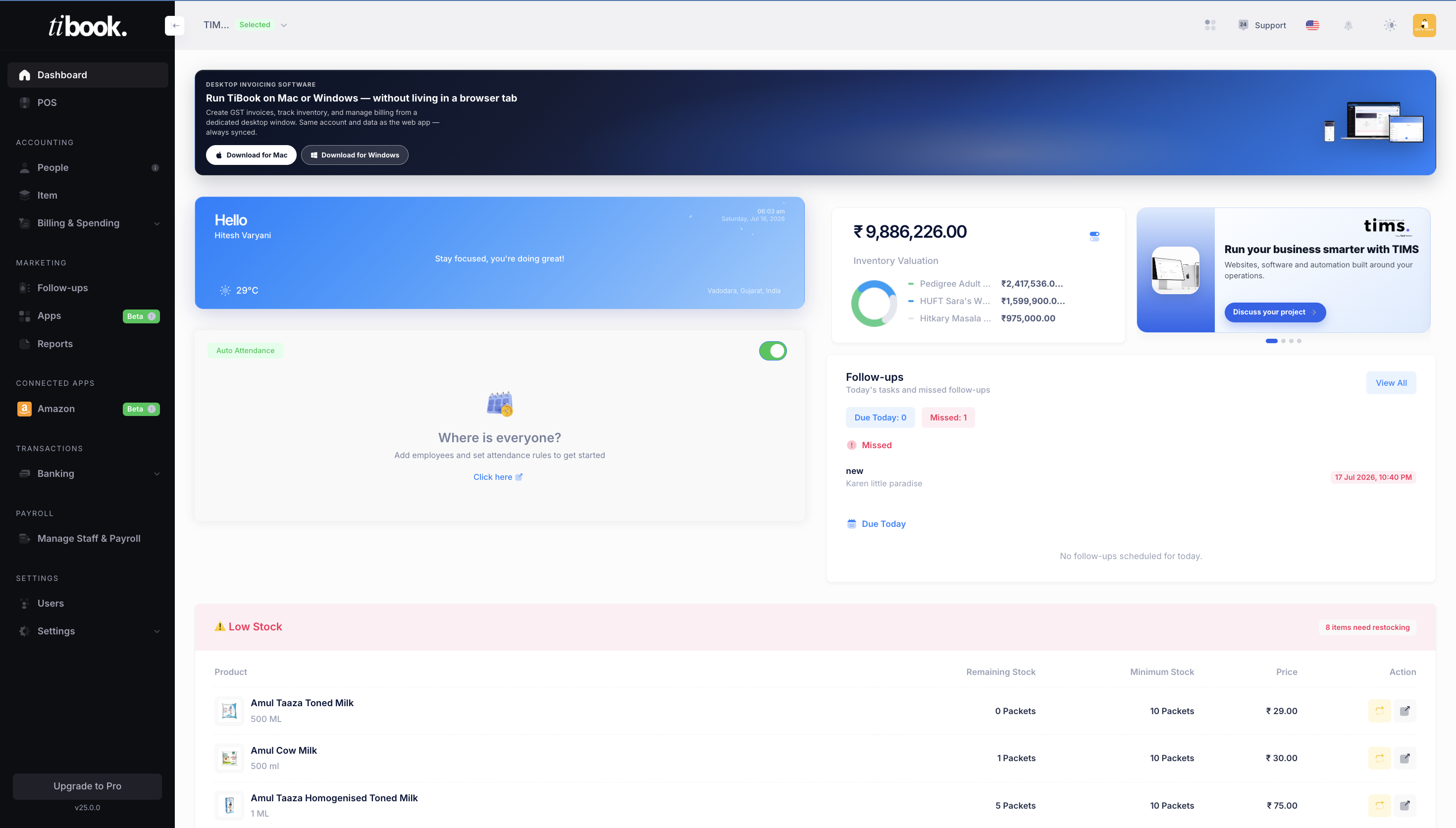
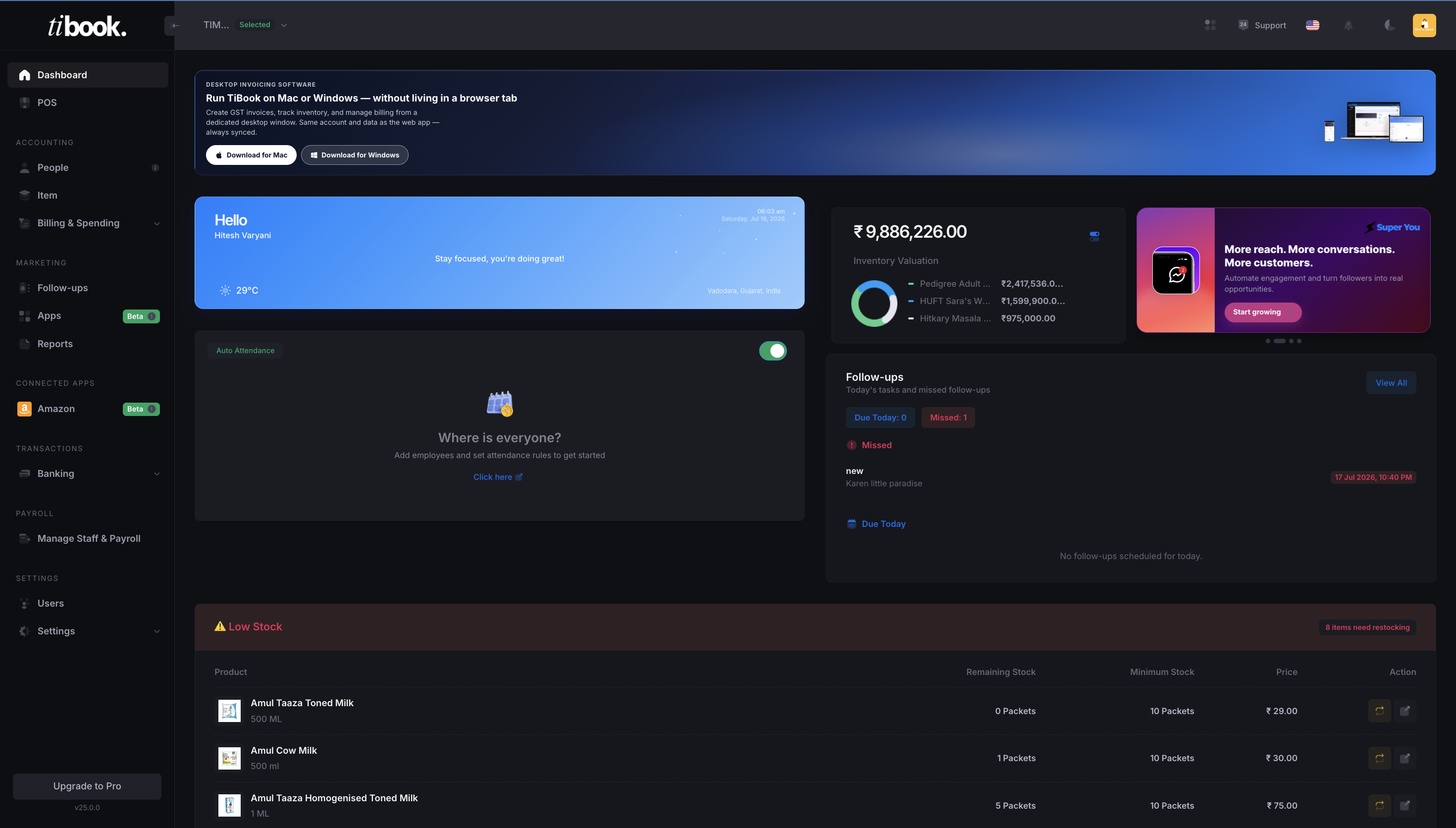
Follow-up reminder
Call back Karen Little Paradise
Restock reminder
8 items below minimum stock
Inventory valuation
₹98,86,226 across 3 warehouses
Payment received
₹24,500 from Patel Enterprises
How this looks in TiBook
How to
- 1On the dashboard, open the Windows or Mac promo card, or download from the account menu if shown.
- 2Install the app and sign in with the same email you use on the web.
- 3Your companies, invoices, and stock are the same data — not a second copy.
- 4Keep the app updated so it stays in sync with new TiBook releases.
When to use desktop
Busy counters, long invoice sessions, and teams that live in one window all day. The browser remains fully supported.
POS and Restaurant POS are easiest on a desktop or tablet-sized screen.
Related articles
- Create your TiBook accountSign up with email or Google, set a password, and open your first company workspace on app.tibook.in.
- Enable Retail POSTurn on the POS app from the Apps catalog so your team can bill at the counter with search, payments, tax, and thermal print.
- Bill at the counterSearch or tap items, attach a customer, toggle tax, record payment received, and save the invoice from Retail POS.
Need more help?
Email, call, or WhatsApp the TiBook team. We can walk through invoicing, stock, POS, or your GST setup.
Open TiBook