Complete the Quick Start checklist
The first-run checklist walks you through company, a party, an item, and your first invoice so the books are usable the same day.
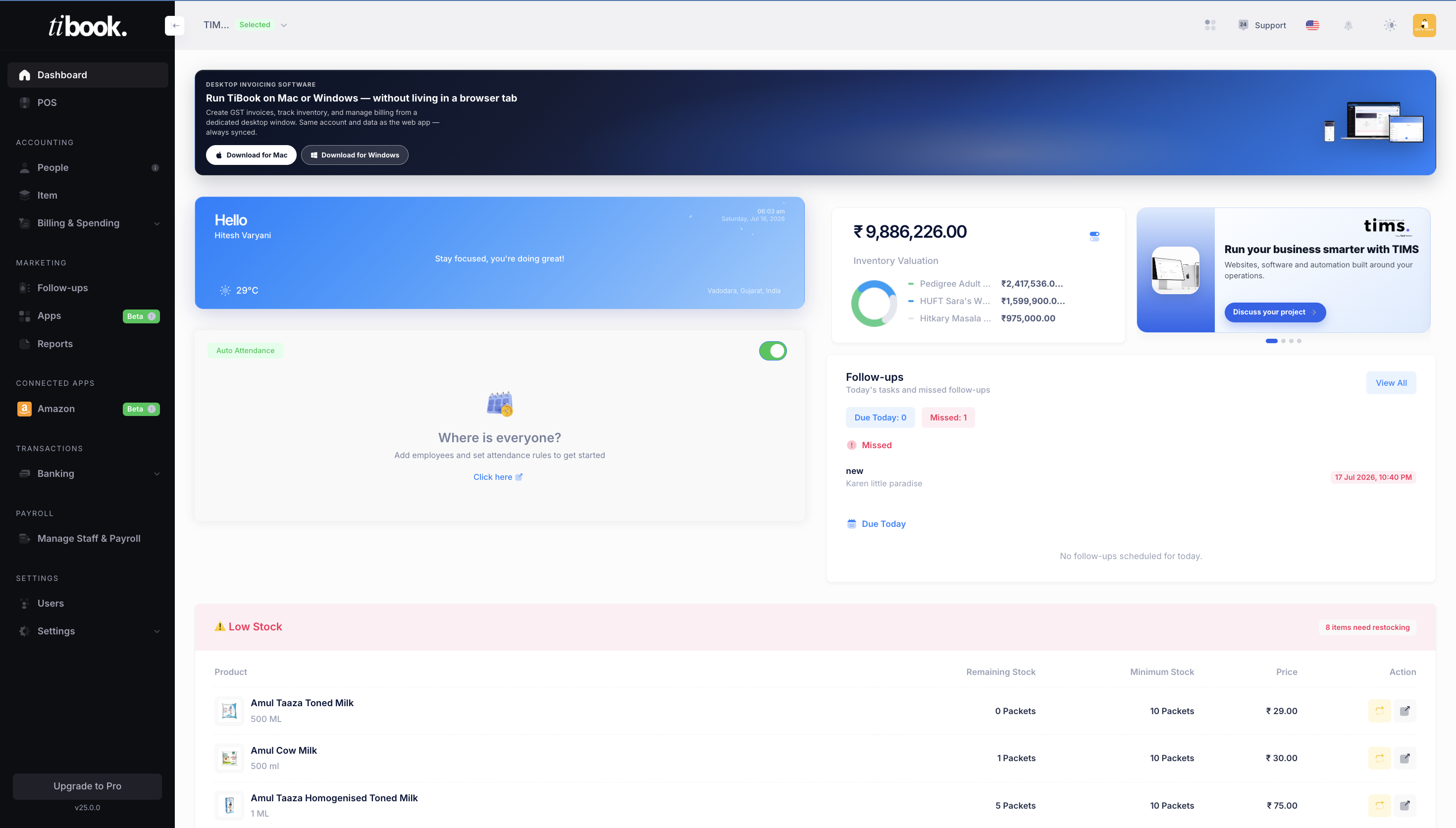
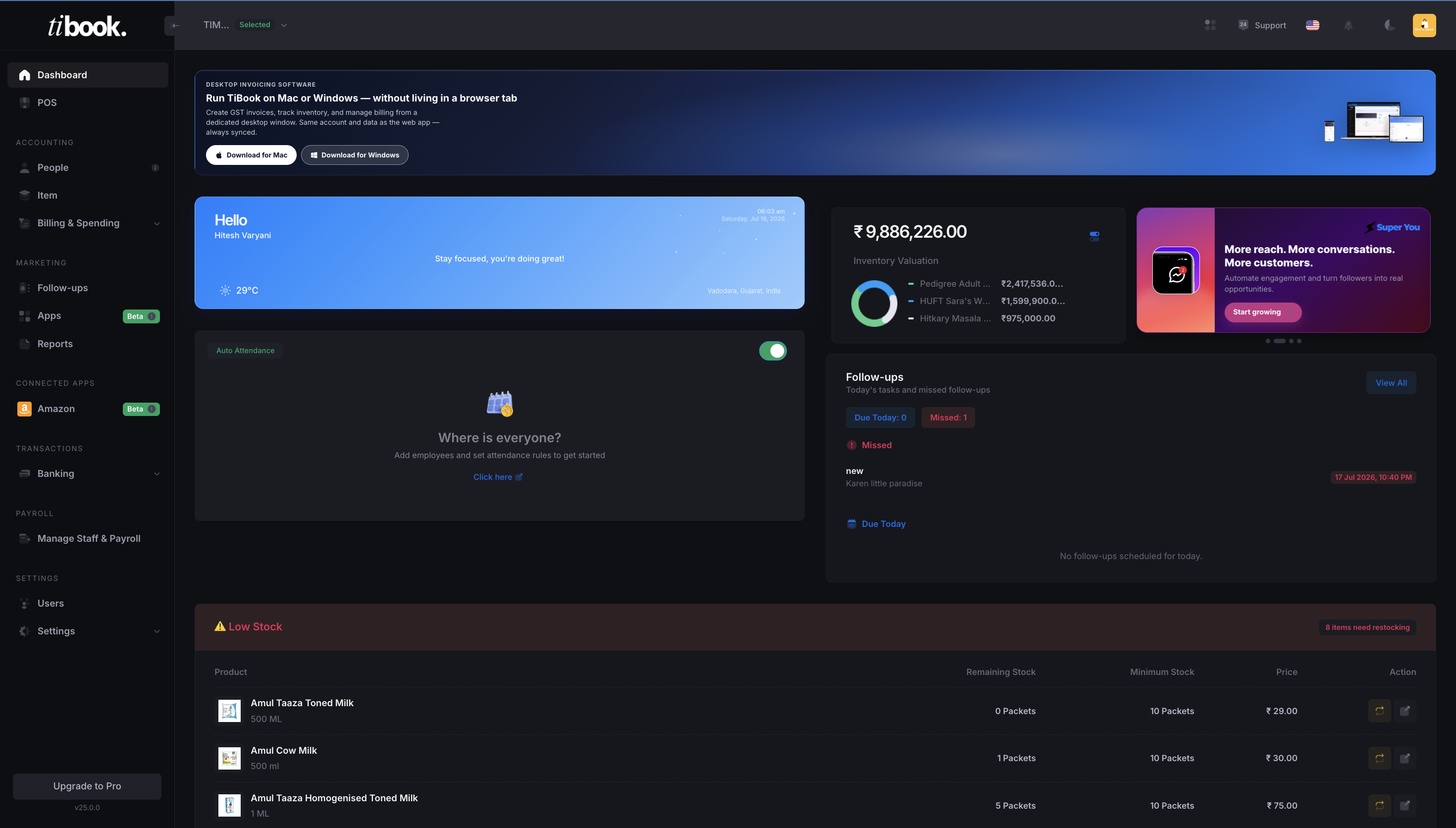
Follow-up reminder
Call back Karen Little Paradise
Restock reminder
8 items below minimum stock
Inventory valuation
₹98,86,226 across 3 warehouses
Payment received
₹24,500 from Patel Enterprises
How this looks in TiBook
How to
- 1After login, look for the Quick Start panel (or the floating button if you collapsed it).
- 2Tick Company by saving your business profile.
- 3Add at least one party (customer or supplier).
- 4Add at least one item (product or service).
- 5Create your first sales invoice. The step completes when the invoice is saved.
- 6You can dismiss the checklist. Restore it later from the same control if you still need it.
What “done” unlocks
Once these four exist, POS, reports, payments, and the Agent all have something to work with. Skipping items or parties only slows the next bill.
Import parties and items from Excel if you already keep a list — you do not have to type them one by one.
Related articles
- Create your TiBook accountSign up with email or Google, set a password, and open your first company workspace on app.tibook.in.
- Add a customer or supplierCreate a party with name, email, mobile, tax IDs, addresses, opening balance, and custom fields from the Parties screen.
- Add a product or serviceOpen the item stepper from Items, choose product or service, set prices, tax, units, and stock so you can bill on the first invoice.
Need more help?
Email, call, or WhatsApp the TiBook team. We can walk through invoicing, stock, POS, or your GST setup.
Open TiBook